In our course we use Go as the main programming language. Furthermore, in order to benefit from various development tools that Go provides, such as syntax highlighting, error checking, autocompletion, autoformatting, etc, we encourage students to install and set up an IDE that has a full-fledged support for Go language. You suggest to choose between Geany and Visual Studio Code. Geany has less features, but is also faster and has simpler installation than Visual Studio Code.

Visual Studio Code supports a rich set of features, thanks to Go extension.

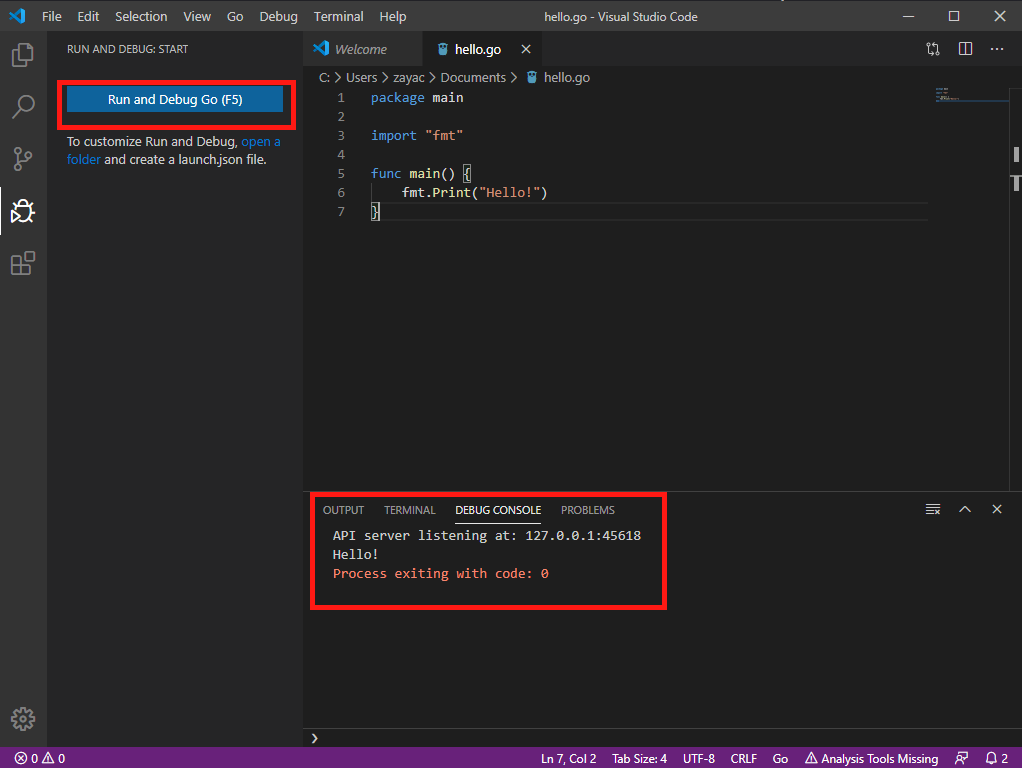
Please find below a step-by-step guide on installing a Go compiler and development tools, as well as Geany and Visual Studio Code with support for Go. The above image shows the expected end result: a simple Go program executes successfully in Visual Studio Code.

The guide is split in four steps. Follow the mandatory step (1.a) and (2.a), or (1.b) and (2.b), depending on your operating system. As a result, you will install Go and Geany.

Steps (3) and (4) are optional. Step (4) should be similar for both platforms.

We will be using two links to download the software:
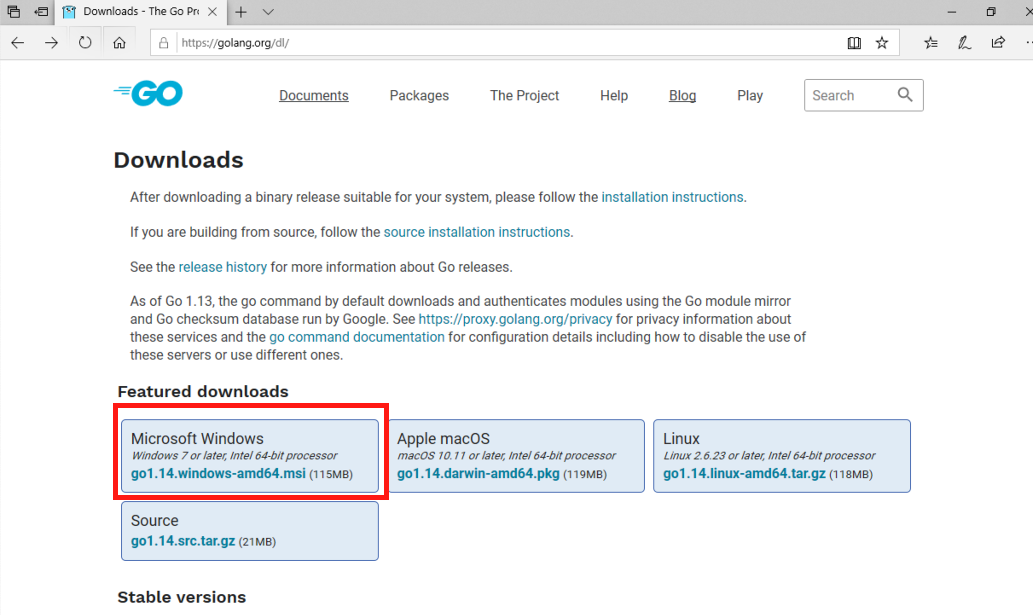
(1) Download a Go installer for Microsoft Windows from https://golang.org/dl/.
Download a Go installer for Microsoft Windows from https://golang.org/dl/.
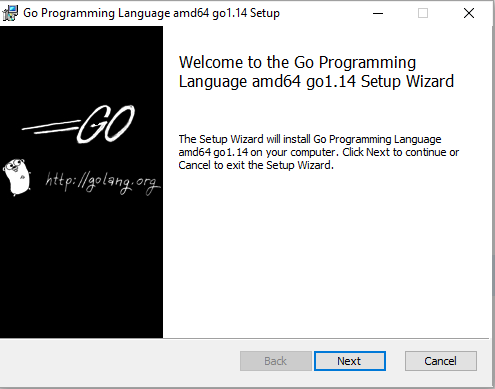
(2) Run the installer. Follow the steps to install Go.
Run the installer. Follow the steps to install Go.

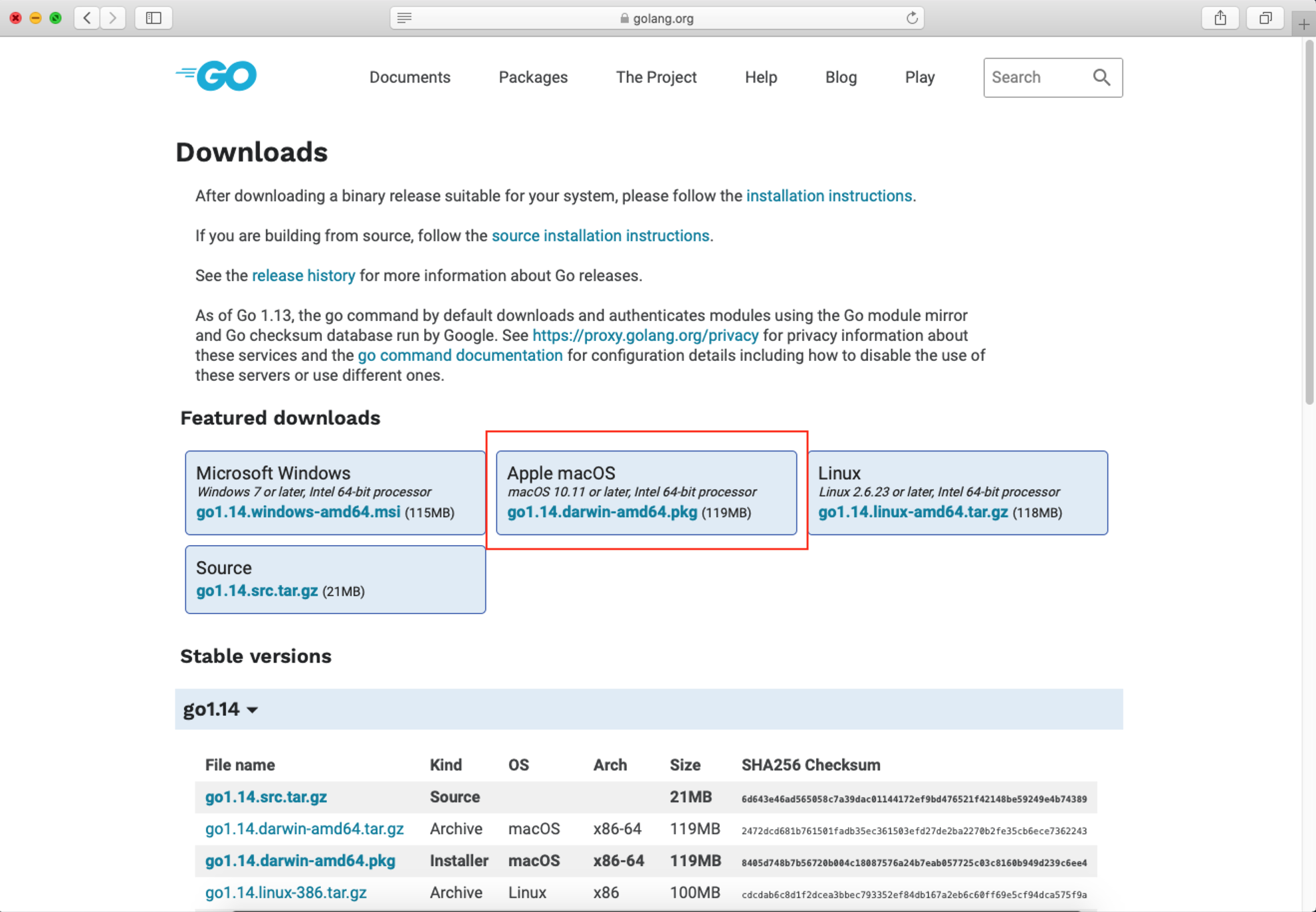
(1) Download a Go installer for Apple macOS from https://golang.org/dl/.
Download a Go installer for Apple macOS from https://golang.org/dl/.
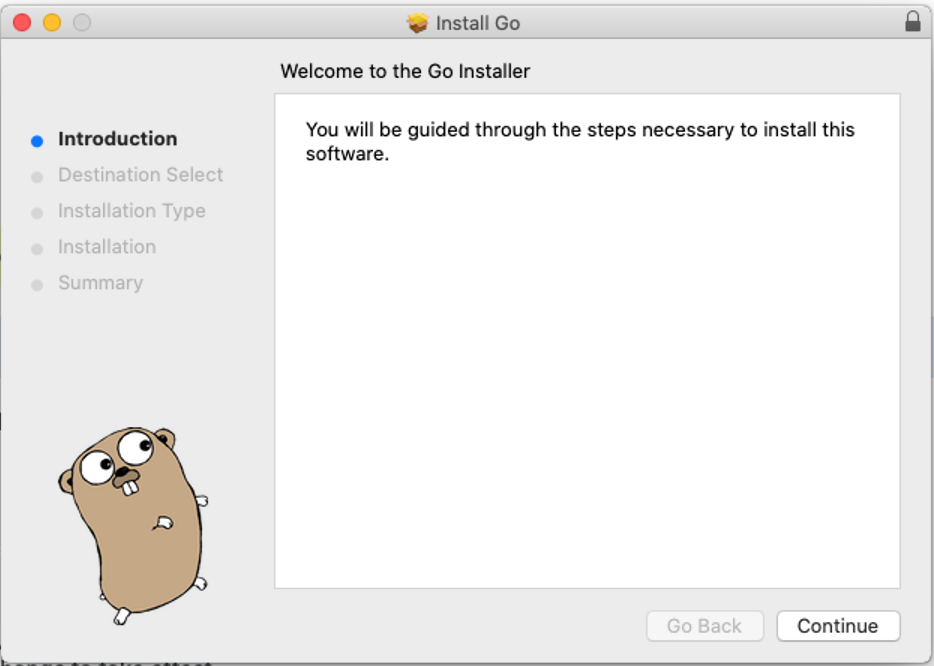
(2) Run the installer. Follow the steps to install Go.
Run the installer. Follow the steps to install Go.

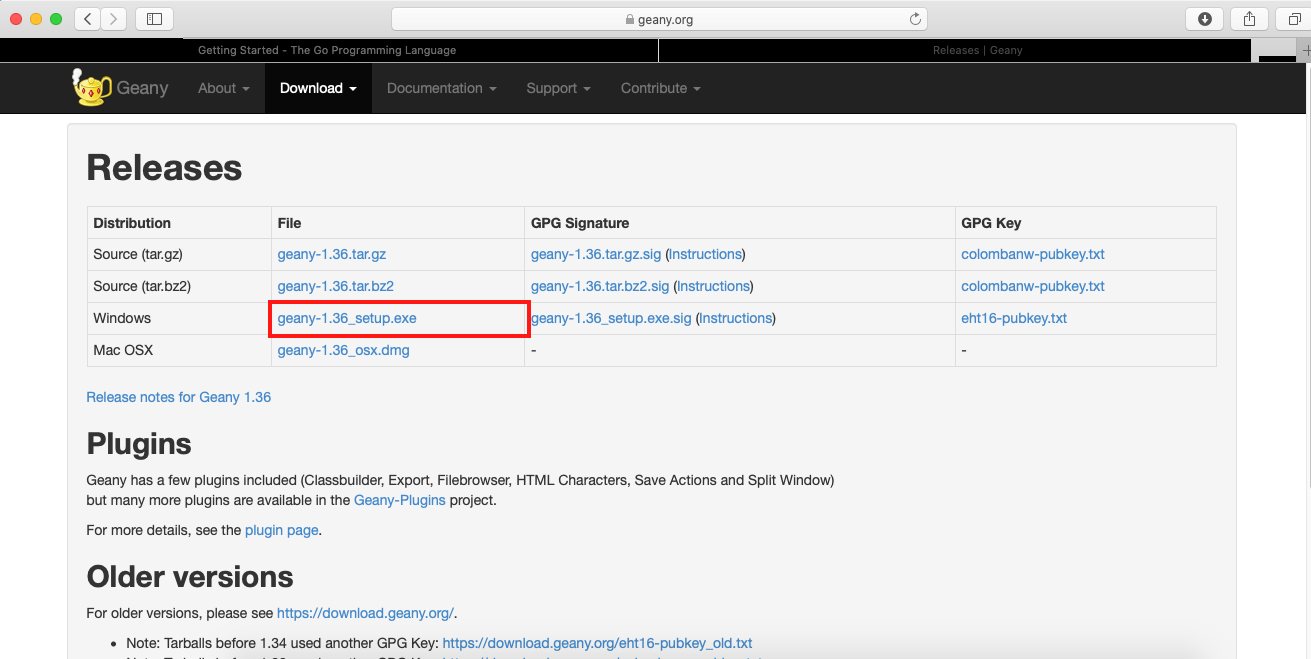
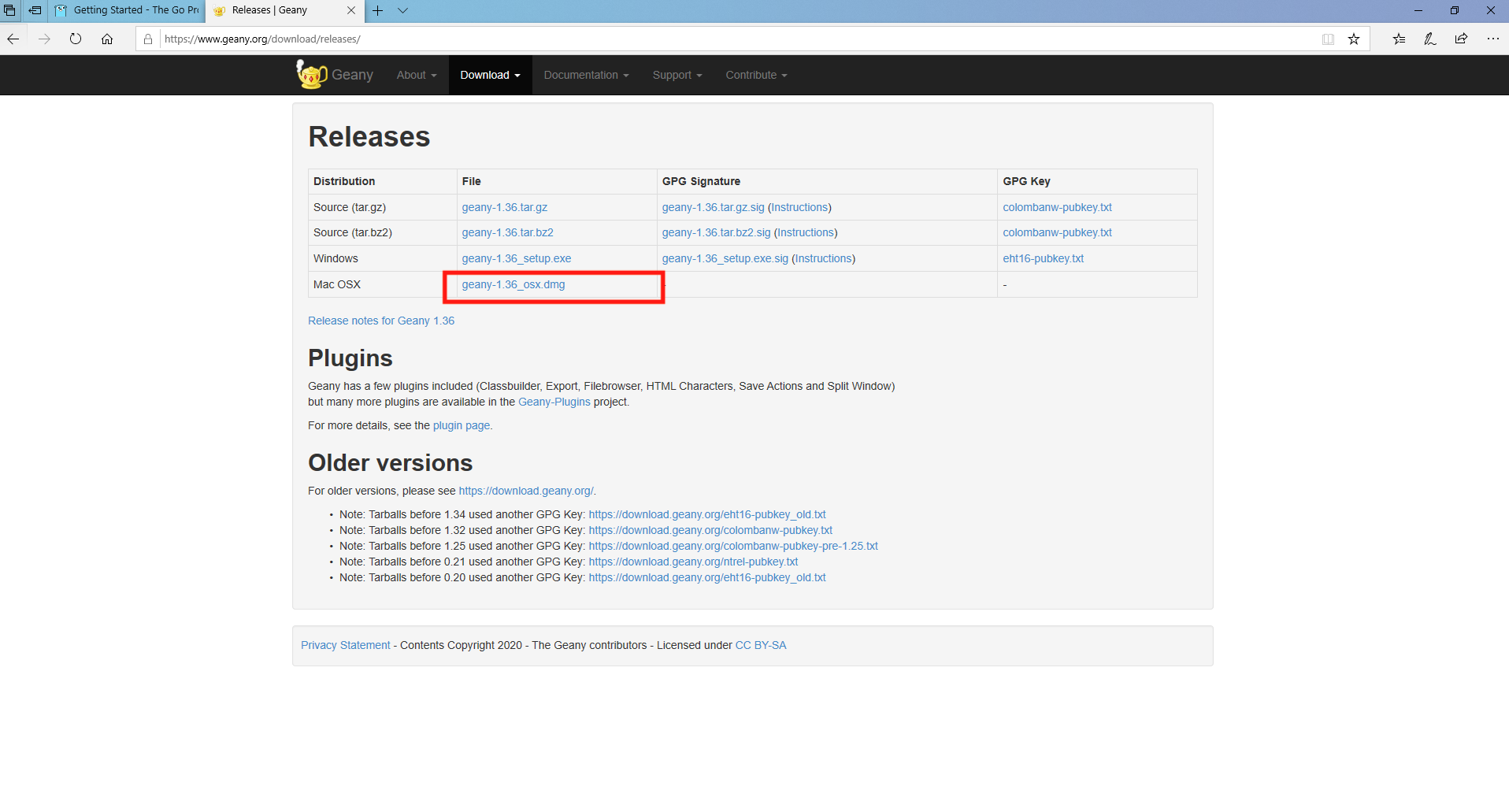
(3) Download a Geany installer for Microsoft Windows from https://www.geany.org/download/releases/.
Download a Geany installer for Microsoft Windows from https://www.geany.org/download/releases/.
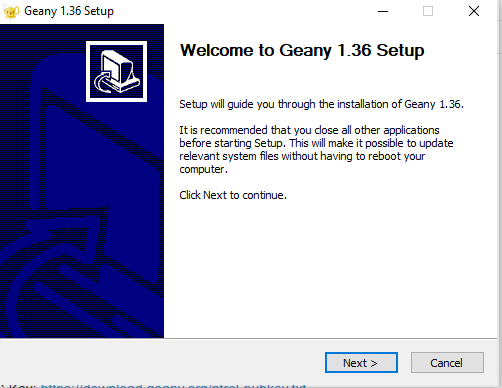
(4) Run the installer. Follow the steps to install Go.
Run the installer. Follow the steps to install Go.
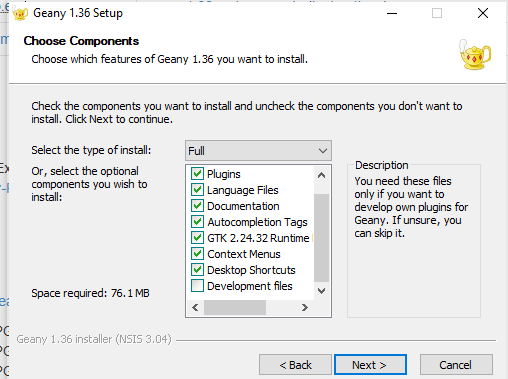
(5) Leave the default installation components.
Leave the default installation components.
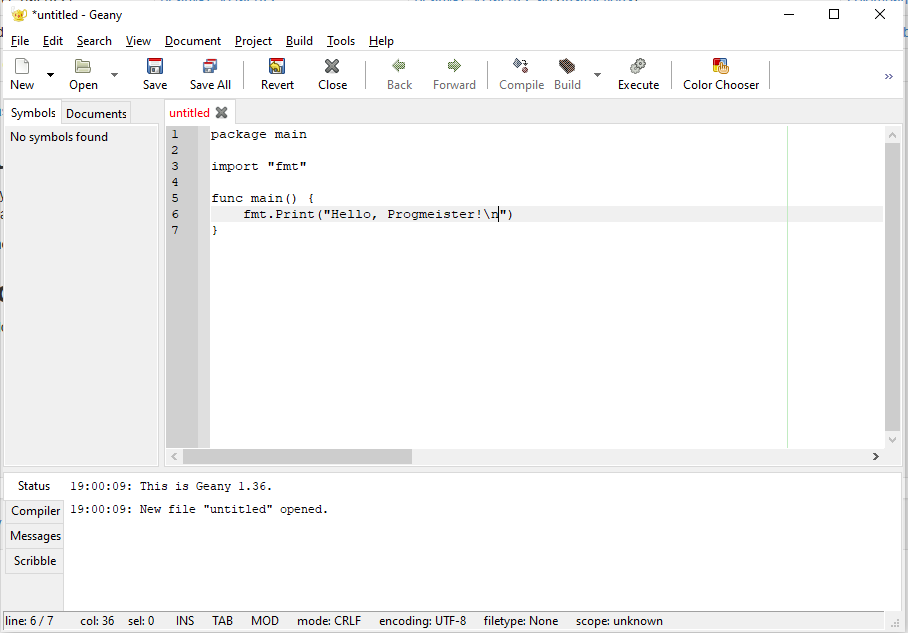
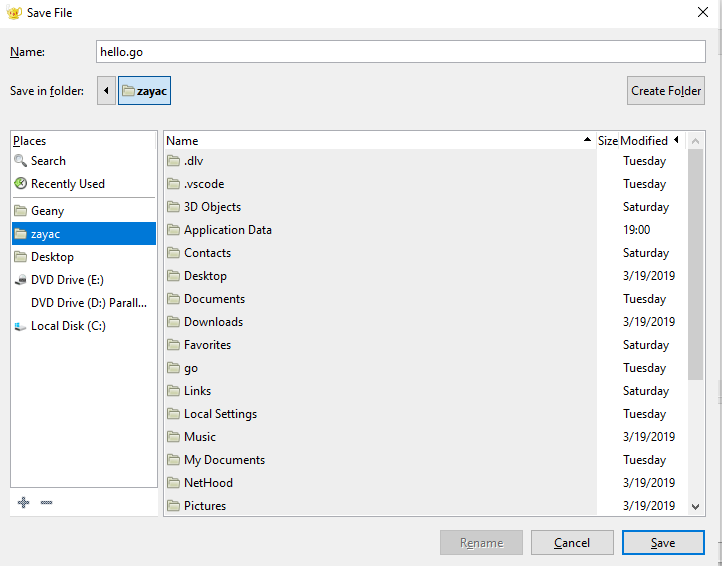
(6) Open Geany and write a sample program.
Open Geany and write a sample program.
(7) Save the program with .go extension.
Save the program with .go extension.
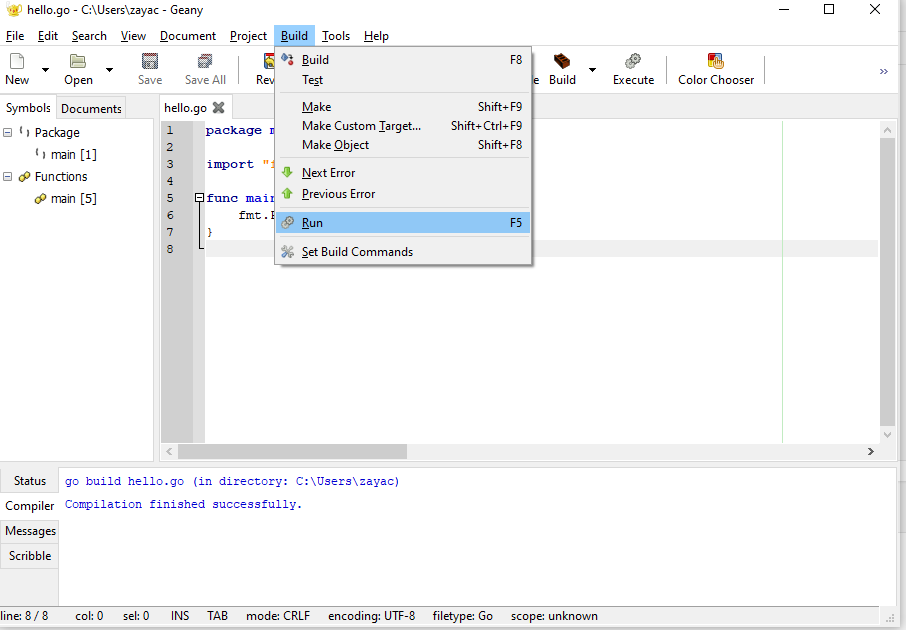
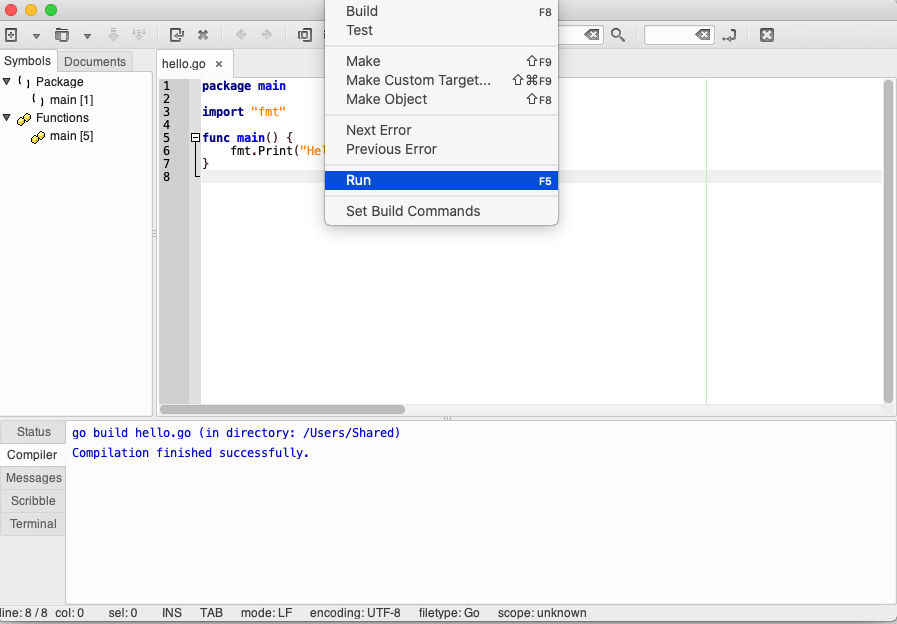
(8) Select 'Build -> Run' to run the program.
Select 'Build -> Run' to run the program.
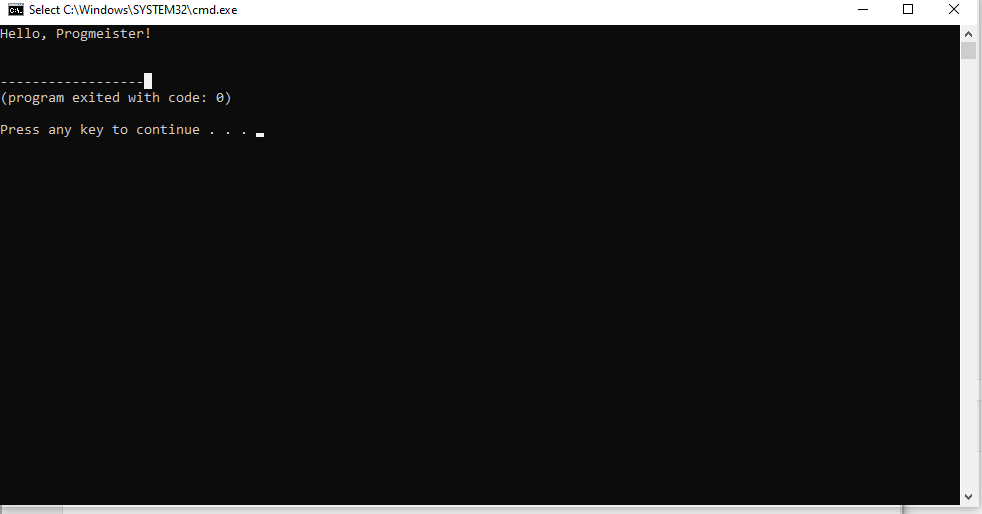
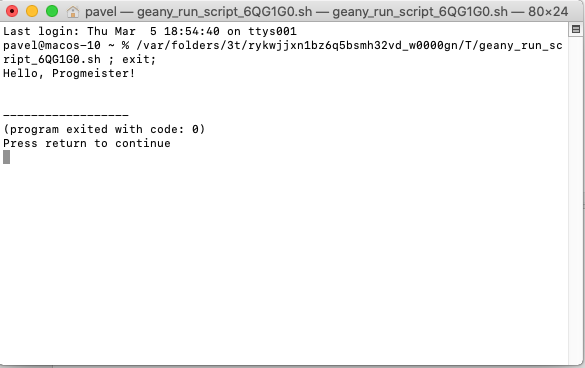
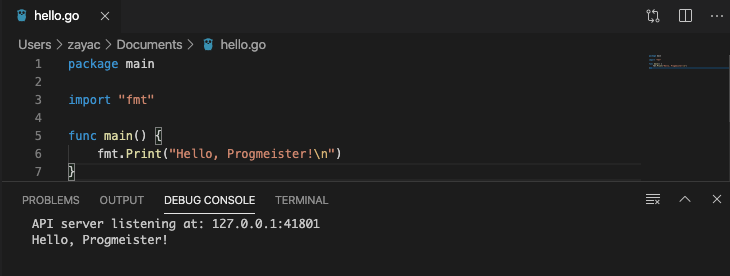
(9) You should see a similar output.
You should see a similar output.

(3) Download a Geany installer for Apple macOS from https://www.geany.org/download/releases/.
Download a Geany installer for Apple macOS from https://www.geany.org/download/releases/.
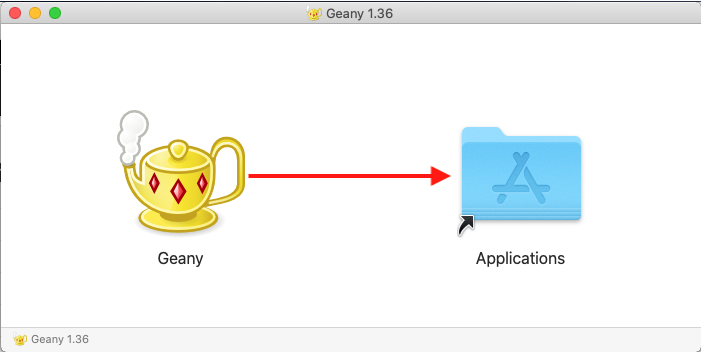
(4) Move Geany to 'Applications' directory.
Move Geany to 'Applications' directory.
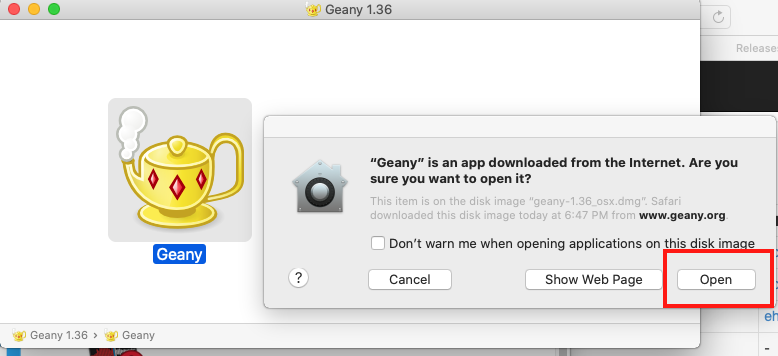
(5) Open Geany.
Open Geany.
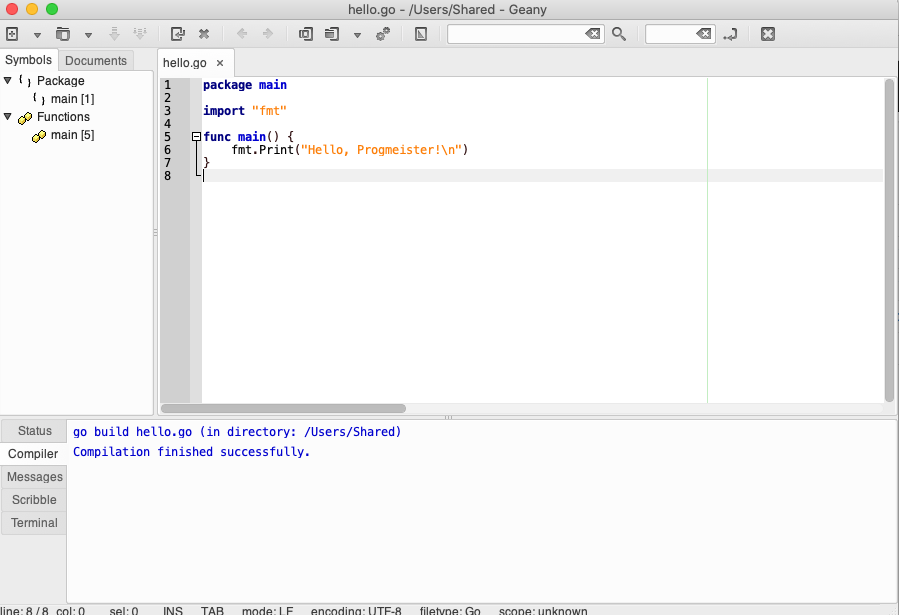
(6) Write a sample program and save it in a file with .go extension.
Write a sample program and save it in a file with .go extension.
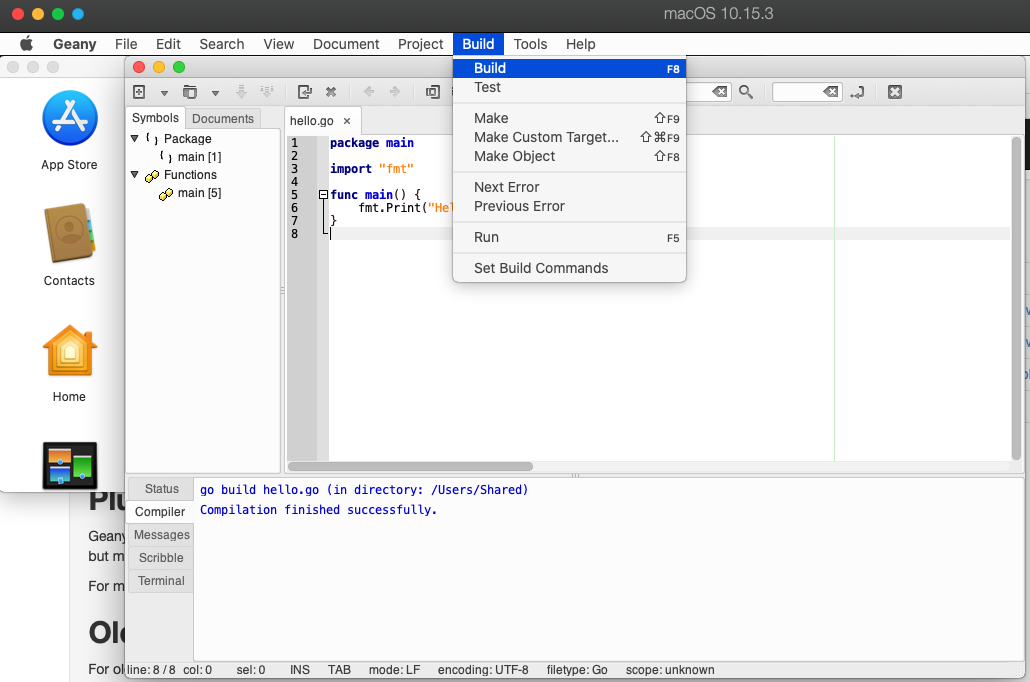
(7) Select 'Build -> Build' to build the program.
Select 'Build -> Build' to build the program.
(8) Select 'Build -> Run' to run the program.
Select 'Build -> Run' to run the program.
(9) You should see a similar output.
You should see a similar output.

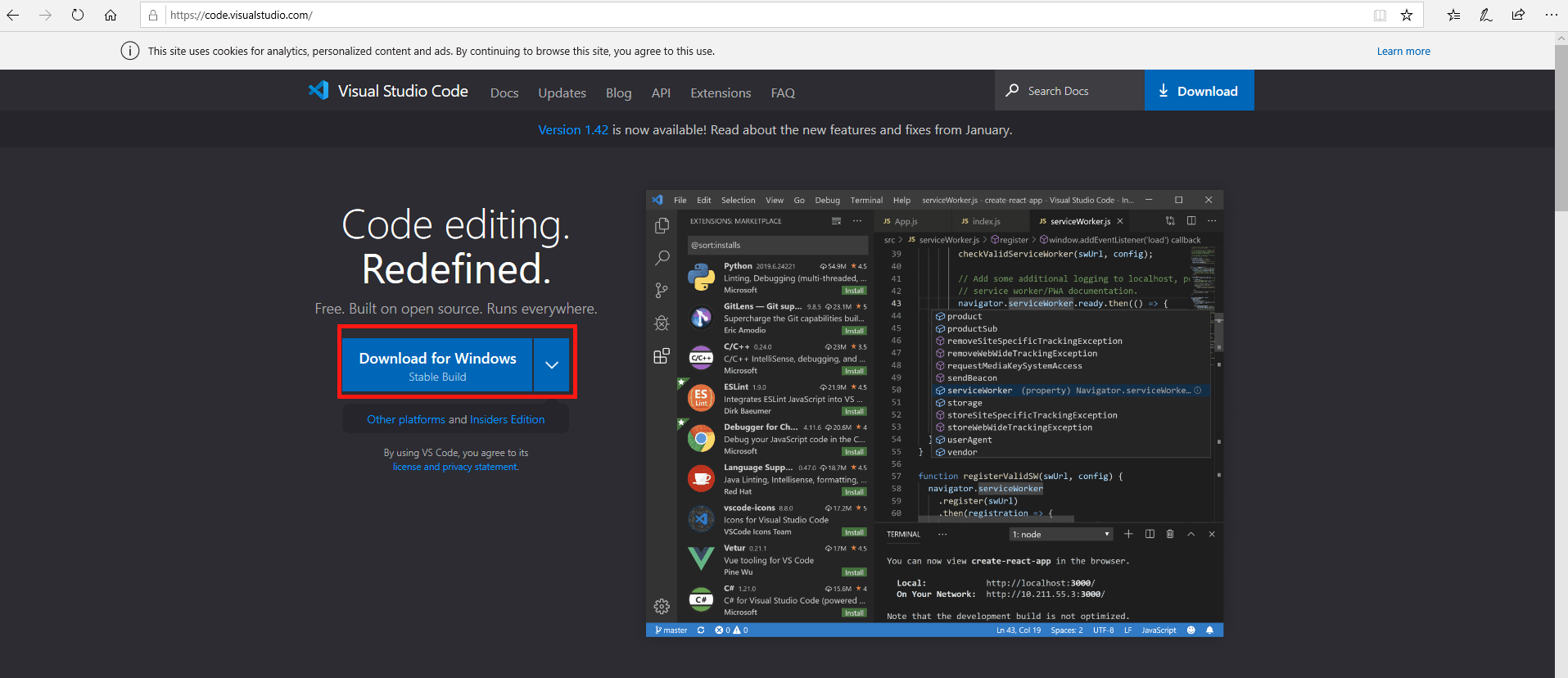
(10) Download a VS Code installer for Windows from https://code.visualstudio.com/.
Download a VS Code installer for Windows from https://code.visualstudio.com/.
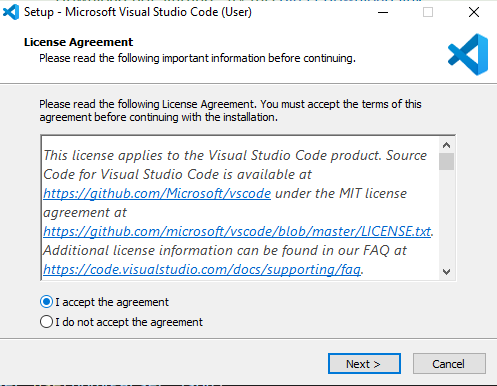
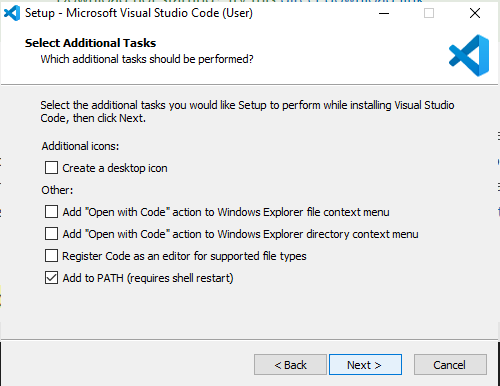
(11) Run the installer. Follow the steps to install VS Code.
Run the installer. Follow the steps to install VS Code.
(12) Accept the default installation settings.
Accept the default installation settings.

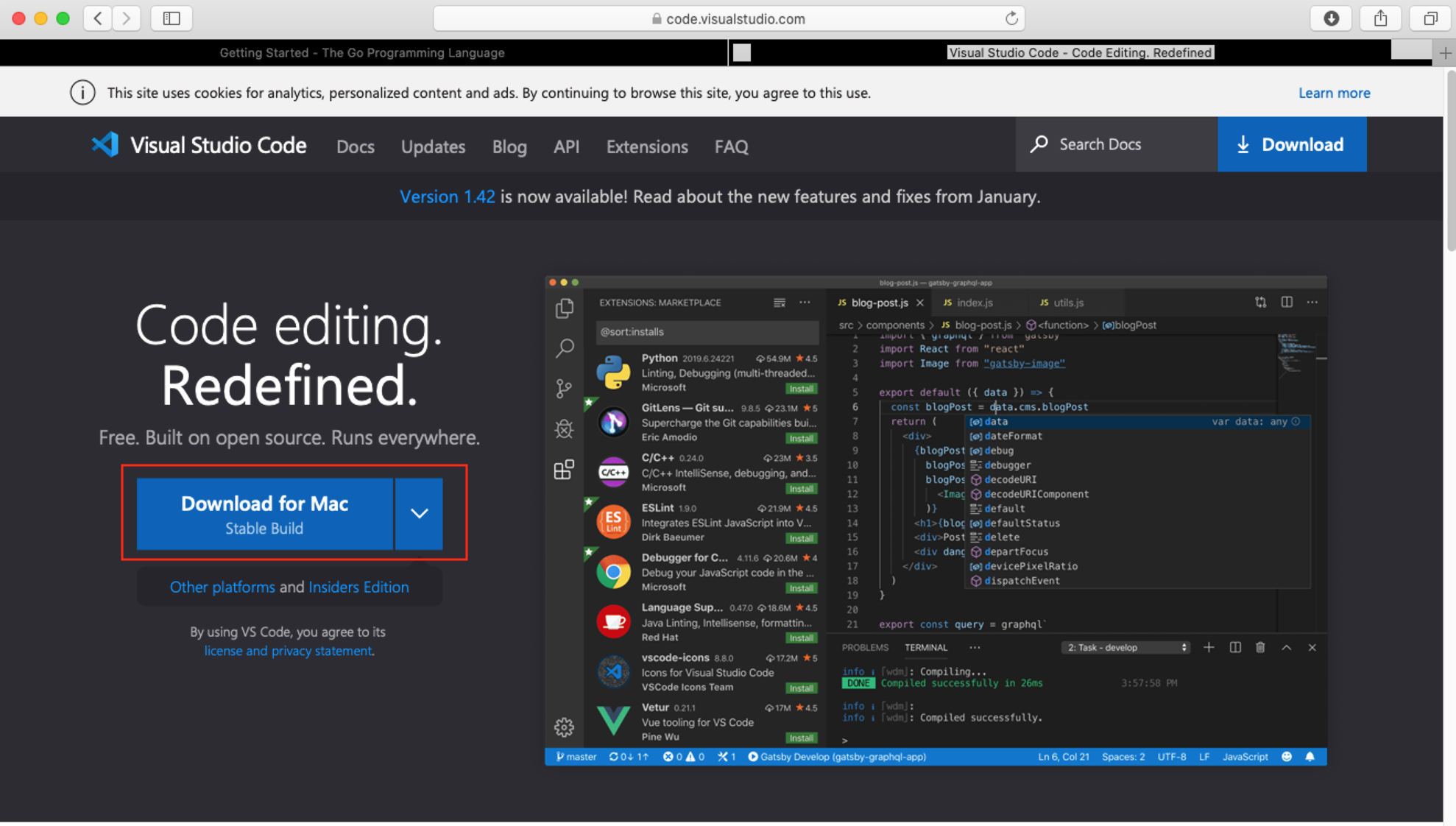
(10) Download a Visual Studio Code installer for Mac from https://code.visualstudio.com/.
Download a Visual Studio Code installer for Mac from https://code.visualstudio.com/.
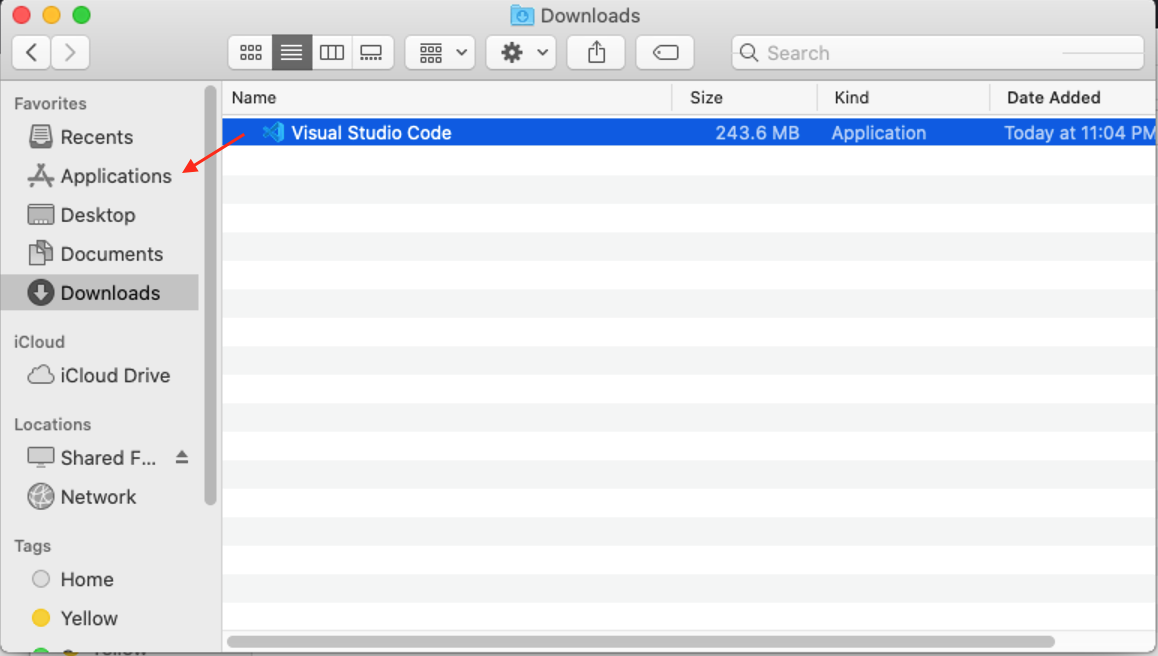
(11) Move 'Visual Studio Code' from Downloads to Applications directory.
Move 'Visual Studio Code' from Downloads to Applications directory.
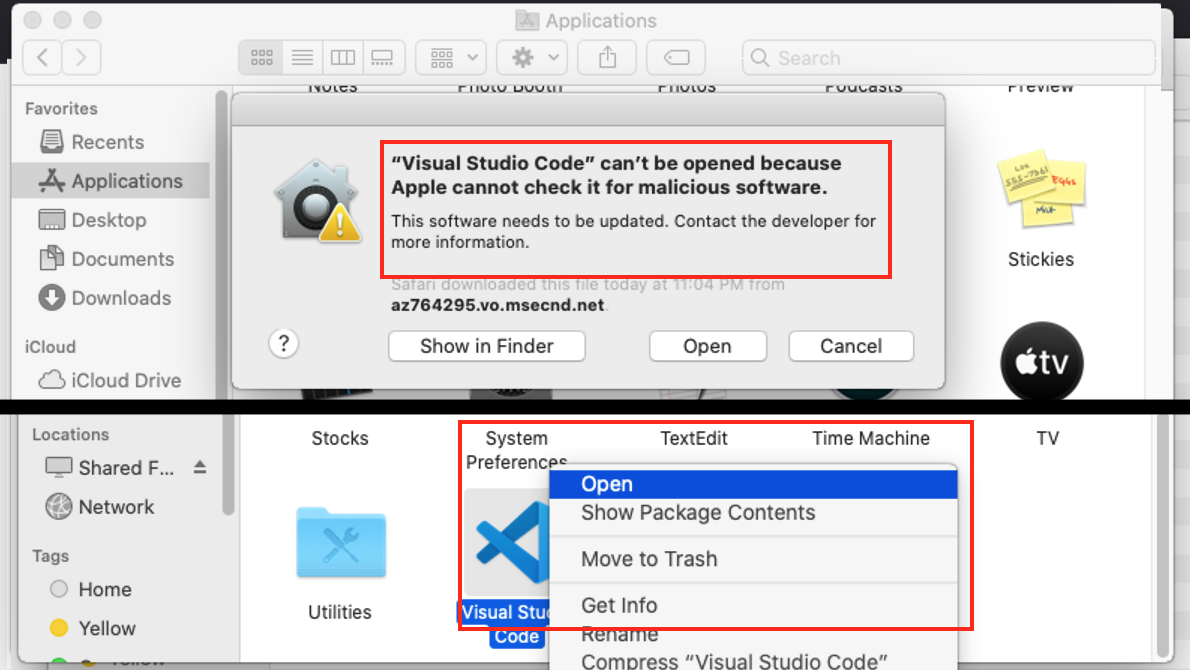
(12) Try to open Visual Studio Code. If you get the error about malicious software, make a right-click with a mouse and select 'Open'.
Try to open Visual Studio Code. If you get the error about malicious software, make a right-click with a mouse and select 'Open'.

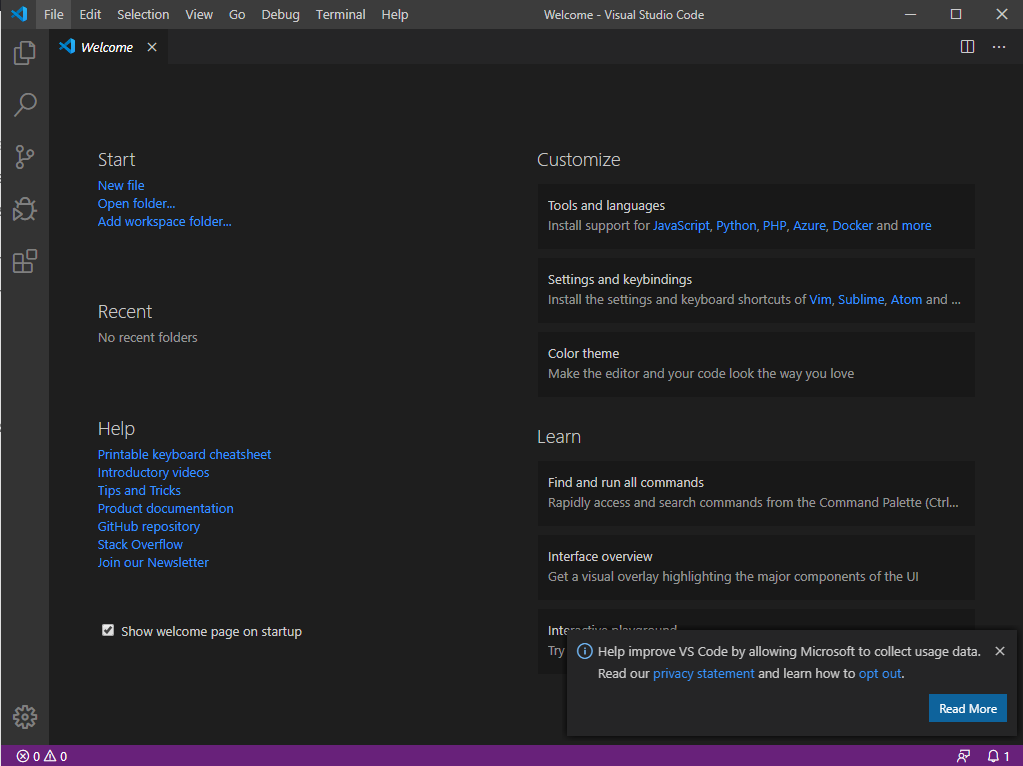
(13) Open the freshly installed Visual Studio Code. You should see a similar window.
Open the freshly installed Visual Studio Code. You should see a similar window.
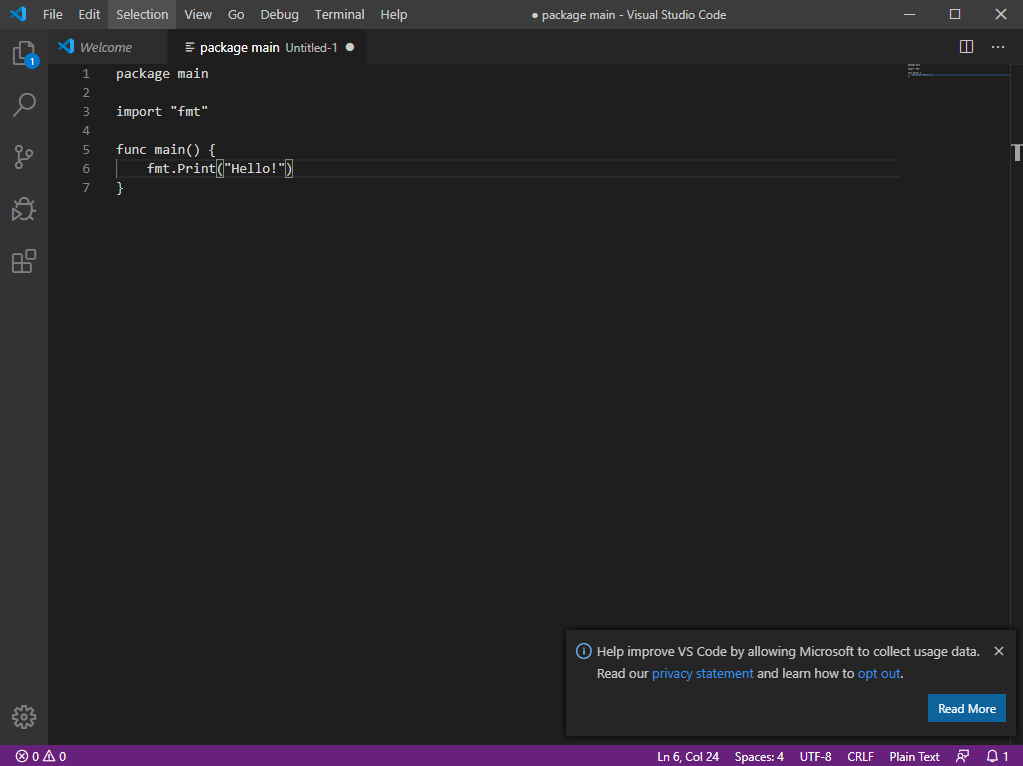
(14) Create new file and write a simple Go program.
Create new file and write a simple Go program.
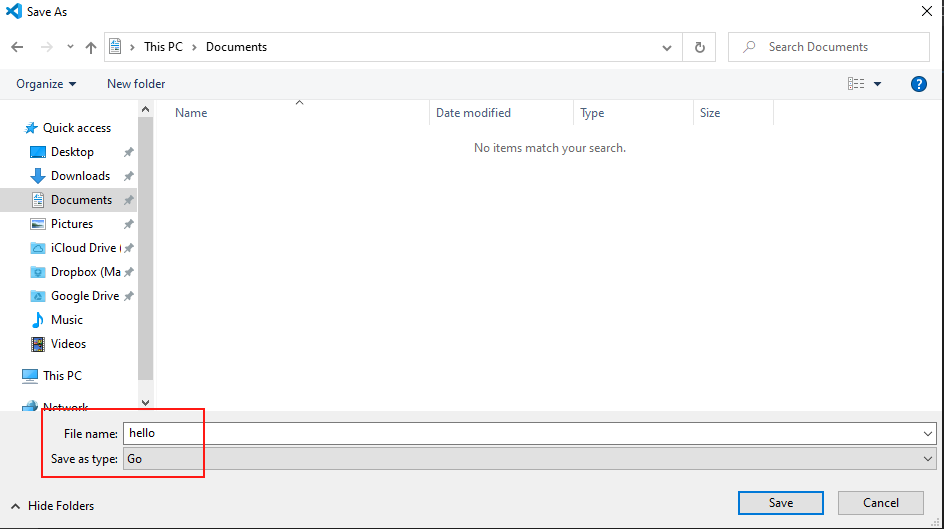
(15) Save a file with the program. Select 'Go' as a type.
Save a file with the program. Select 'Go' as a type.
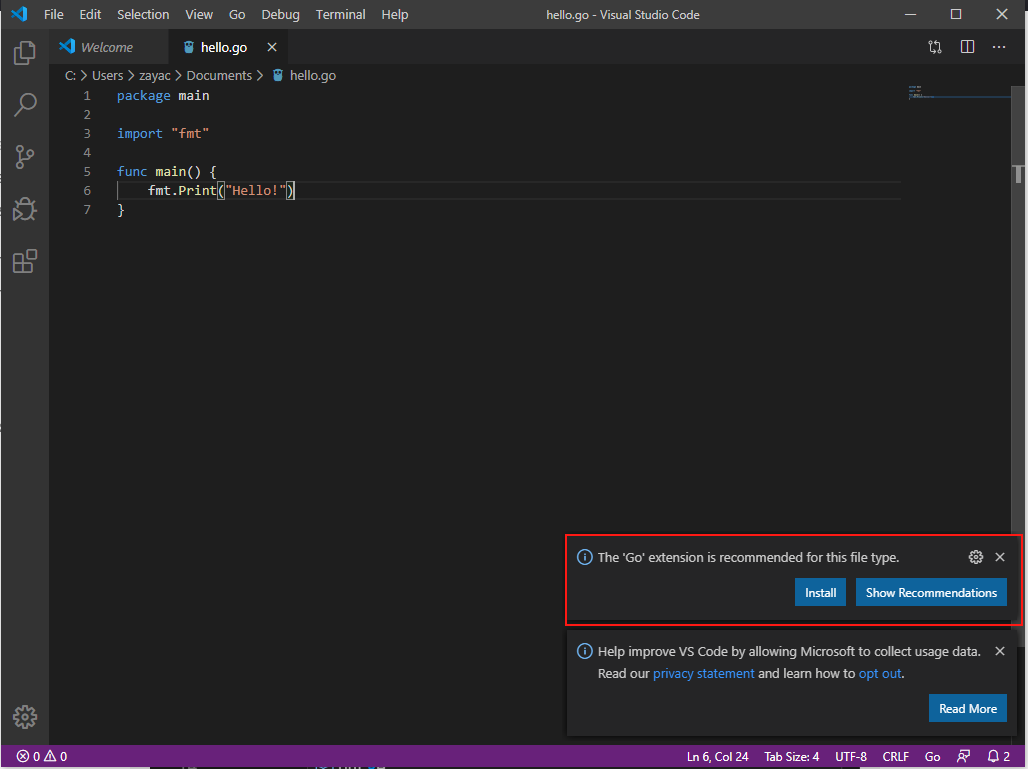
(16) You should see a recommendation to install 'Go' extension. Accept the recommendation.
You should see a recommendation to install 'Go' extension. Accept the recommendation.
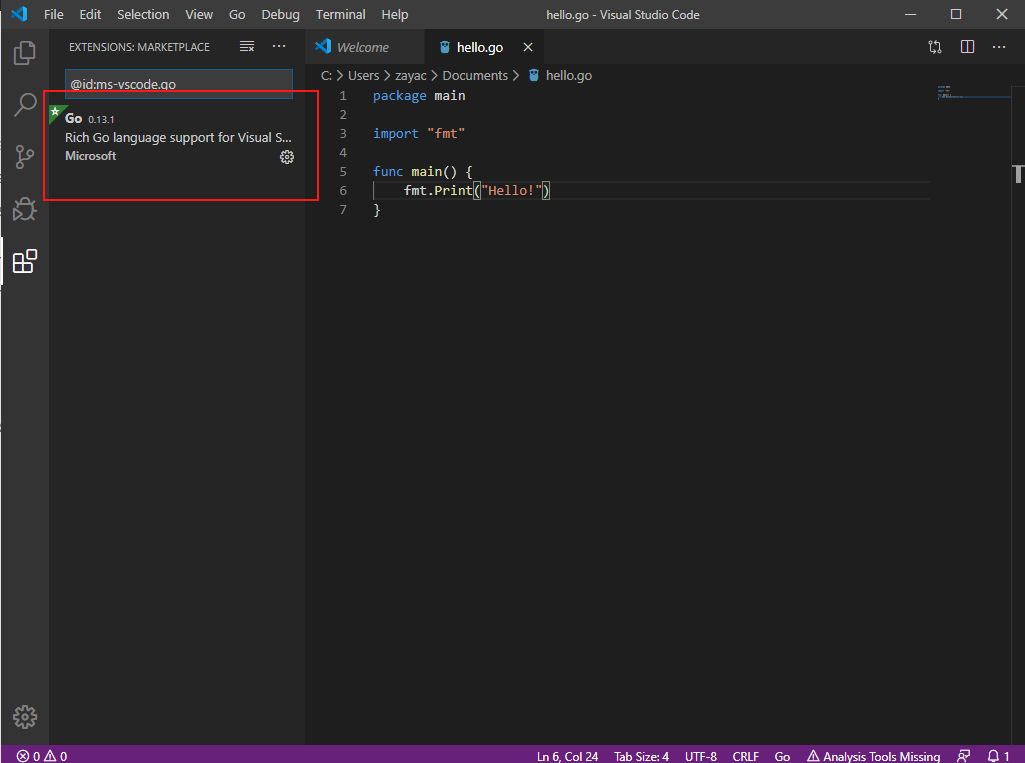
(17) You will see 'Go' in 'Extensions' section once the installation is complete.
You will see 'Go' in 'Extensions' section once the installation is complete.
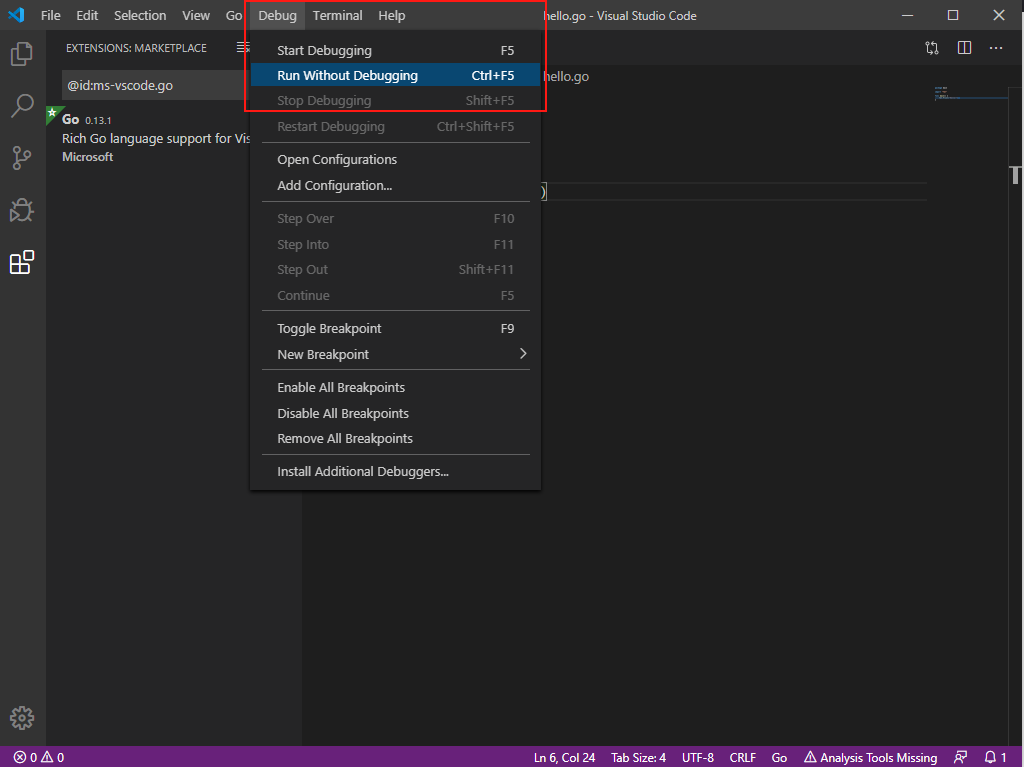
(18) Select 'Debug' -> 'Run Without Debugging' to compile and execute the program.
Select 'Debug' -> 'Run Without Debugging' to compile and execute the program.
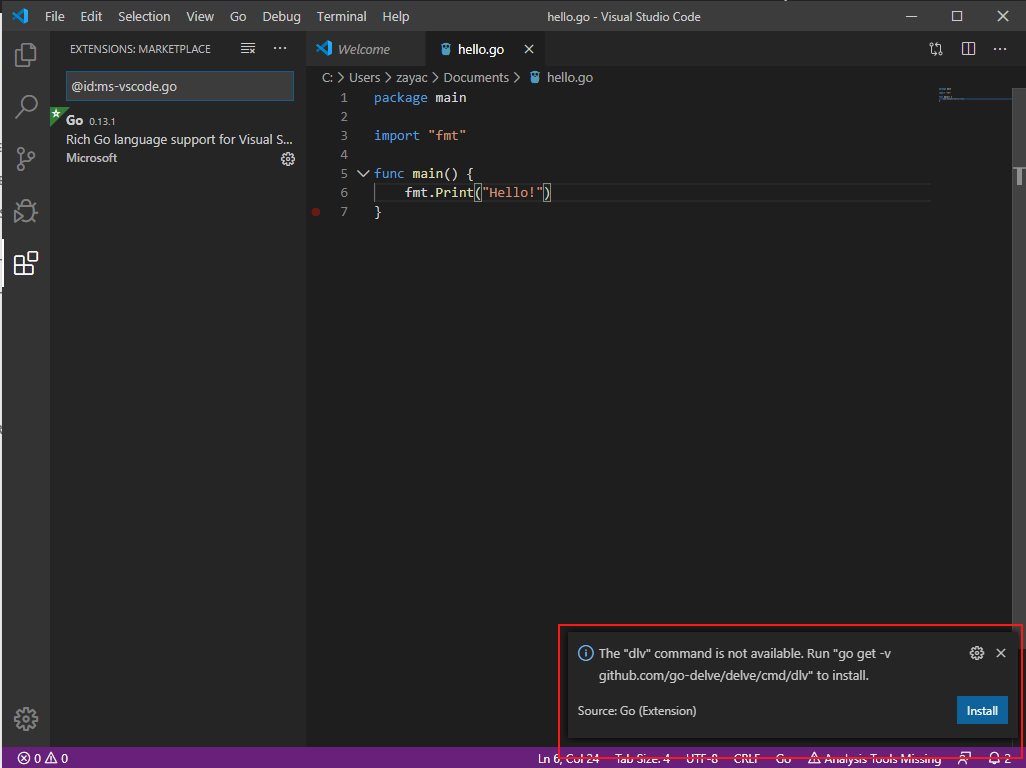
(19) If Visual Studio Code complains about missing Go commands, click 'Install' to install them.
If Visual Studio Code complains about missing Go commands, click 'Install' to install them.
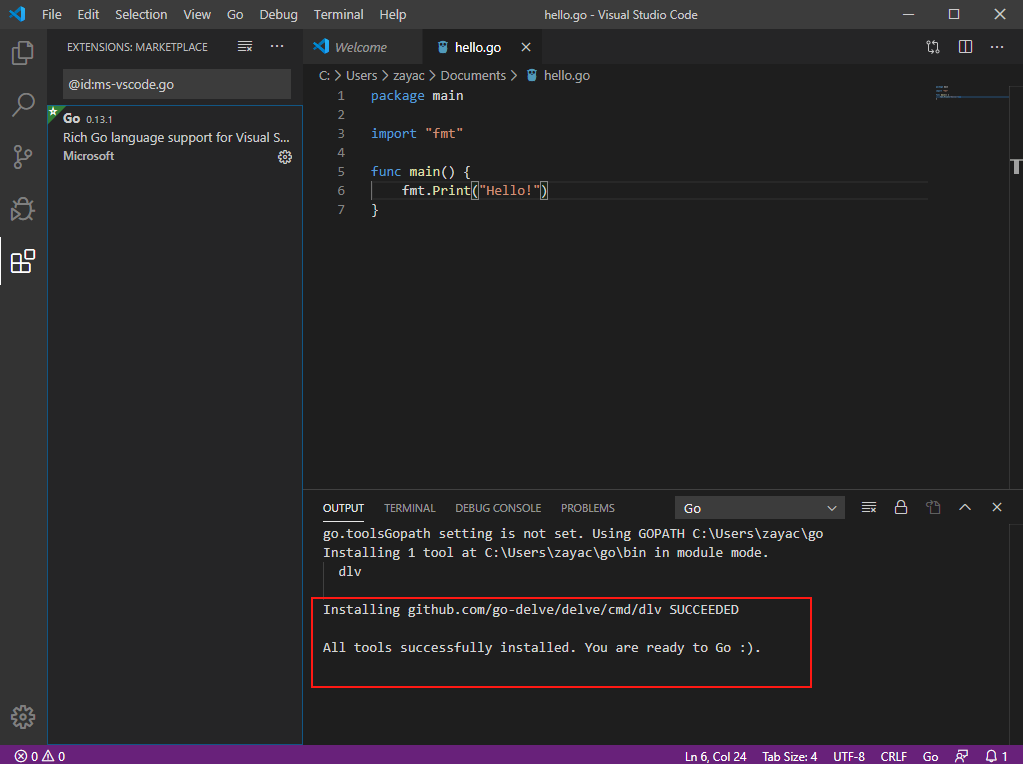
(20) Once all dependencies are install, you will see the following message.
Once all dependencies are install, you will see the following message.
(21) Click 'Run and Debug Go' or select 'Debug' -> 'Run Without Debugging' again to execute the program again. It should succeed this time.
Click 'Run and Debug Go' or select 'Debug' -> 'Run Without Debugging' again to execute the program again. It should succeed this time.